
HP Laptop Service Center in Patna
Are you facing an HP Laptop heating issue while working, gaming, attending online classes, or watching videos? Overheating is one of the most common problems HP laptop users experience. If not addressed on time, excessive heat can affect performance, reduce battery life, damage internal components, and even cause unexpected shutdowns.
If your HP laptop is getting unusually hot, this guide will help you understand the causes, solutions, and when to seek professional assistance from an HP Laptop Service Center in Patna.
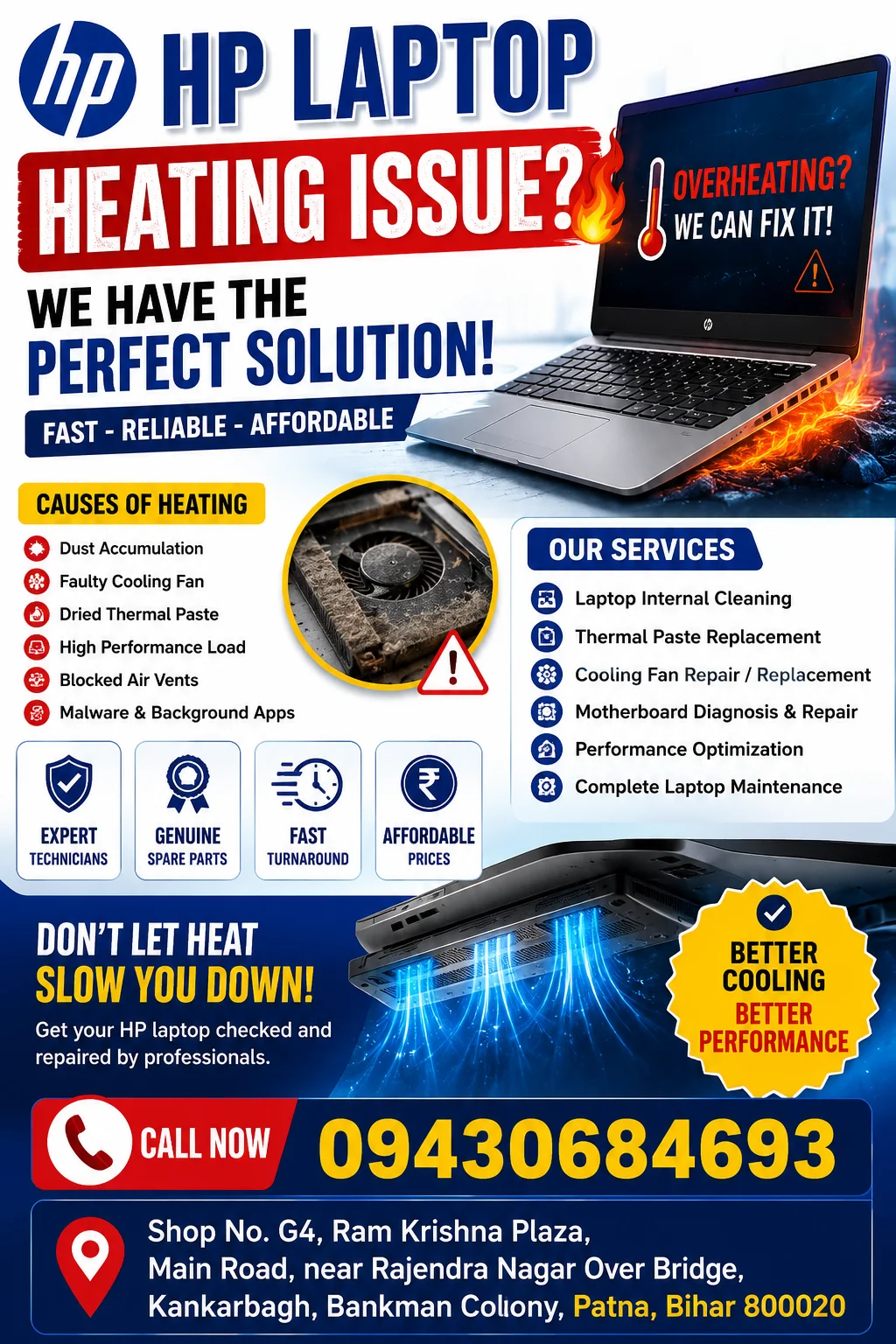
What Is an HP Laptop Heating Issue?
An HP Laptop heating issue occurs when the laptop’s internal temperature rises beyond normal operating levels. Modern HP laptops are designed with cooling systems that regulate temperature. However, dust buildup, software issues, aging hardware, or poor ventilation can cause the system to overheat.
Common signs include:
- Laptop becoming extremely hot
- Slow performance and lagging
- Automatic shutdowns or restarts
- Loud cooling fan noise
- Battery draining quickly
- Screen freezing or crashing
Common Causes of HP Laptop Heating Issues
1. Dust Accumulation in Cooling Vents
Dust particles can block airflow and prevent heat from escaping. Over time, the cooling fan and heatsink become clogged, causing an HP Laptop heating issue.
2. Faulty Cooling Fan
A damaged or slow-moving cooling fan cannot effectively cool the processor and internal components.
3. High CPU Usage
Running multiple applications simultaneously can put excessive strain on the processor, generating more heat.
4. Old Thermal Paste
Thermal paste helps transfer heat from the processor to the heatsink. Over time, it dries out and loses effectiveness.
5. Malware or Background Processes
Certain malicious programs continuously consume system resources, causing overheating.
6. Blocked Airflow
Using the laptop on beds, cushions, or soft surfaces can block ventilation openings.
How to Fix HP Laptop Heating Issue
Clean the Cooling System
Regular cleaning removes dust from vents and cooling fans, improving airflow.
Update Drivers and BIOS
HP frequently releases updates that improve thermal management and system performance.
Close Unnecessary Applications
Use Task Manager to identify and close resource-intensive programs.
Use a Cooling Pad
A cooling pad provides additional airflow and helps reduce operating temperatures.
Scan for Malware
Run a trusted antivirus scan to eliminate hidden programs causing excessive CPU usage.
Replace Thermal Paste
If your laptop is several years old, replacing thermal paste can significantly improve cooling efficiency.
Why You Should Not Ignore an HP Laptop Heating Issue
Ignoring an HP Laptop heating issue can lead to:
- Motherboard damage
- Processor failure
- Battery swelling
- Data loss
- Frequent system crashes
- Reduced laptop lifespan
Early diagnosis and repair can prevent costly hardware replacements.
Professional HP Laptop Heating Issue Repair
Some overheating problems require expert diagnosis. Professional technicians can:
- Clean internal cooling components
- Replace faulty cooling fans
- Apply new thermal paste
- Diagnose motherboard issues
- Optimize system performance
If home troubleshooting does not solve the problem, visiting an HP Laptop Service Center in Patna is recommended.
How Experts Diagnose HP Laptop Heating Issues
Professional technicians typically follow these steps:
- Temperature monitoring and testing
- Fan performance inspection
- Internal dust cleaning
- Processor and motherboard diagnostics
- Thermal paste replacement
- Software optimization
This process ensures the root cause of the HP Laptop heating issue is identified accurately.
Tips to Prevent HP Laptop Heating Issue
Keep Air Vents Clean
Clean vents regularly to maintain proper airflow.
Avoid Soft Surfaces
Always use your laptop on a hard, flat surface.
Update Software Regularly
Install the latest Windows and HP updates.
Monitor Temperature
Use trusted temperature-monitoring software.
Shut Down Occasionally
Allow the system to cool down after long working sessions.
Use Genuine Accessories
Original chargers and batteries help maintain safe operating temperatures.
Why Choose HP Laptop Service Center in Patna?
When facing a persistent HP Laptop heating issue, professional assistance ensures accurate diagnosis and reliable repairs. Experienced technicians can identify hidden hardware problems and restore optimal performance.
Benefits include:
- Advanced diagnostic tools
- Experienced HP laptop technicians
- Genuine spare parts support
- Fast repair services
- Comprehensive system inspection
For severe overheating problems, visiting an HP Laptop Service Center in Patna can help prevent long-term damage to your device.
Frequently Asked Questions (FAQs)
Why is my HP laptop heating up so quickly?
Dust buildup, heavy software usage, blocked airflow, or a faulty cooling fan are common reasons for rapid overheating.
Can overheating damage my HP laptop?
Yes. Continuous overheating can damage the motherboard, processor, battery, and storage components.
How often should I clean my HP laptop?
Professional internal cleaning is generally recommended every 6–12 months depending on usage conditions.
Is thermal paste replacement necessary?
If your laptop is older and experiencing high temperatures, replacing thermal paste can improve heat dissipation.
Where can I get my HP laptop checked in Patna?
You can visit an HP Laptop Service Center in Patna for professional diagnosis and repair services.
Conclusion
An HP Laptop heating issue should never be ignored. Overheating affects performance, reduces hardware lifespan, and may result in costly repairs if left unresolved. Regular maintenance, software optimization, and timely servicing can keep your HP laptop running efficiently.
If your laptop continues to overheat despite troubleshooting, consulting an HP Laptop Service Center in Patna is the best way to ensure a complete and reliable solution.