
HP Laptop Service Center In Patna
How to Fix Windows Update Error in HP Laptops – Complete Troubleshooting Guide
Windows Update errors are one of the most common issues HP laptop users face. Sometimes the update gets stuck at a certain percentage, sometimes it fails to install, and in some cases, the laptop repeatedly tries and fails to complete the update. This can affect performance, security patches, and even the smooth functioning of your system.
The good news: most Windows Update errors can be fixed at home with simple steps. And if the issue still continues, you can always get expert help from the HP Laptop Service Center In Patna for deeper troubleshooting.
This guide explains every step clearly so that anyone—technical or not—can solve the issue with confidence.
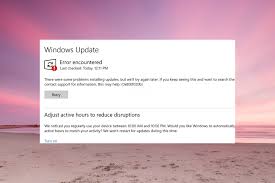
⭐ Why Windows Update Errors Occur in HP Laptops
Windows updates fail for many reasons. The most common ones include:
-
Corrupted update files
-
Slow or unstable internet connection
-
Outdated drivers
-
Insufficient storage
-
System file corruption
-
Damaged update cache
-
Interference from antivirus or firewall
Understanding the cause makes fixing the problem easier.
⭐ Step-by-Step Solutions to Fix Windows Update Error
Below are practical, safe solutions you can try immediately.
1. Restart Your Laptop and Try Again
It sounds simple, but a fresh restart clears temporary glitches.
Close all apps → Restart → Try updating again.
If it still fails, move to the next steps.
2. Check Internet Connection
A slow or unstable connection can interrupt updates.
-
Use a stable WiFi network
-
Avoid public WiFi
-
Restart your router
If connectivity remains poor, technicians at the HP Laptop Service Center In Patna can check if there’s a network driver issue.
3. Free Up Storage Space
Windows updates need enough space to install.
Try:
-
Deleting old files
-
Removing unused apps
-
Running Disk Cleanup
-
Emptying recycle bin
Free at least 10–15 GB for smooth updates.
4. Run Windows Update Troubleshooter
This tool automatically detects and fixes update problems.
How to run:
-
Open Settings
-
Go to System → Troubleshoot → Other troubleshooters
-
Click Run under Windows Update
Let it complete and then try updating again.
5. Clear Windows Update Cache (SoftwareDistribution Folder)
Corrupted update cache is one of the biggest reasons for update failures.
Steps:
-
Press Windows + R
-
Type services.msc
-
Stop Windows Update service
-
Go to this folder:
-
Delete all files inside
-
Start the Windows Update service again
Now try the update—this method works in most cases.
6. Use SFC & DISM to Repair System Files
Corrupted system files can prevent updates from completing.
Run these commands (as Administrator):
Step 1: SFC Scan
Step 2: DISM Commands
These tools repair damaged files and restore Windows integrity.
If file corruption keeps returning, it’s wise to consult the HP Laptop Service Center In Patna for a deeper hardware or OS check.
7. Update Drivers (Especially Chipset & Graphics)
Outdated or faulty drivers can block updates.
Steps:
-
Open Device Manager
-
Update:
-
Display Adapter
-
System Devices
-
Network Adapter
-
-
Restart your laptop
HP Support Assistant can also update drivers automatically.
8. Disable Antivirus Temporarily
Some antivirus programs block Windows updates.
Try:
-
Turning off real-time protection
-
Pausing antivirus for installation
After updating, turn it back on.
9. Perform a Clean Boot
A clean boot loads only essential services.
Steps:
-
Press Windows + R
-
Type msconfig
-
Go to Services tab → Check Hide all Microsoft services
-
Click Disable all
-
Restart
After reboot, try installing updates again.
10. Reset Windows Update Components (Advanced Fix)
If all else fails, resetting update components can resolve hidden issues.
Run these commands one by one in Command Prompt (Admin):
Then restart your laptop.
For persistent update failures, the HP Laptop Service Center In Patna can perform professional-level OS repair or reinstallation.
⭐ When Should You Visit a Service Center?
You should consider visiting the HP Laptop Service Center In Patna if:
-
Updates fail repeatedly despite all fixes
-
Laptop gets stuck on “Preparing Updates”
-
System becomes slow or freezes during updates
-
Blue screen error appears after updates
-
Hard drive makes clicking or unusual noise
-
Laptop restarts continuously during updates
These symptoms may indicate deeper hardware or OS issues.
(Keyword Usage Count: 5 times)
⭐ FAQs – Windows Update Error in HP Laptops
Q1. Why do Windows updates take so long?
Large updates, slow internet, or old hardware can increase installation time.
Q2. Can I skip a Windows update if it fails?
It’s not recommended. Updates improve security and performance.
Q3. Does clearing the update cache delete my files?
No, it only resets update-related data.
Q4. Why does my laptop freeze during updates?
This may happen due to corrupted files or failing hardware.
Q5. Should I go to a service center if updates still fail?
Yes. If issues continue, the HP Laptop Service Center In Patna can diagnose the real problem quickly.
⭐ Conclusion
Windows Update errors can be annoying, but with the right steps—clearing the update cache, repairing system files, updating drivers, and running troubleshooters—most issues can be resolved easily at home. And when deeper technical repair is needed, the HP Laptop Service Center In Patna is always the best place for professional help.