
hp laptop mic replacement in patna
HP Laptop Microphone Not Working – Causes, Fixes, and Replacement Guide
Microphones play an important role in modern laptops. Whether you are attending online meetings, recording audio, or talking with friends during gaming, a working microphone is essential. However, many HP laptop users often face the issue where the microphone suddenly stops working or does not detect sound properly.
If you are experiencing this problem, don’t worry. In most cases, the issue can be fixed with simple troubleshooting steps. And if the microphone is physically damaged, you may need a professional hp laptop mic replacement in patna to restore your laptop’s audio functionality.
In this article, we will discuss the common reasons why the HP laptop microphone stops working and the best methods to fix the issue.
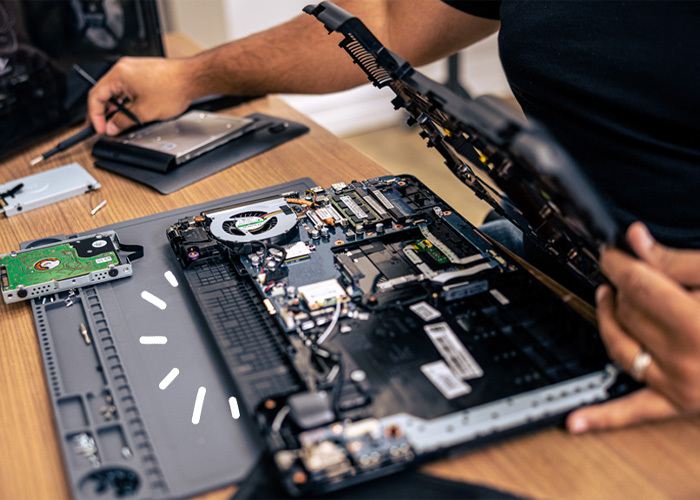
Common Reasons Why HP Laptop Mic Is Not Working
Before fixing the problem, it is important to understand the possible causes. The microphone in an HP laptop may stop working due to several reasons.
1. Incorrect Microphone Settings
Sometimes the microphone is disabled in the system settings. This can prevent apps like Zoom, Skype, or Teams from accessing the microphone.
2. Outdated or Corrupted Drivers
Audio drivers are responsible for connecting the hardware with the operating system. If the driver becomes outdated or corrupted, the microphone may stop functioning.
3. Application Permission Issues
Windows requires applications to have permission to use the microphone. If the permission is turned off, your mic may appear to be not working.
4. Hardware Damage
If the microphone component inside the laptop is physically damaged, software fixes will not solve the problem. In such situations, you may need hp laptop mic replacement in patna from a professional repair technician.
How to Fix HP Laptop Microphone Not Working
Here are some effective troubleshooting steps you can try before considering hardware replacement.
1. Check Microphone Privacy Settings
Follow these steps:
-
Open Settings
-
Click Privacy & Security
-
Select Microphone
-
Turn on Microphone access
-
Allow apps to use the microphone
After enabling these options, test your microphone again.
2. Update Audio Drivers
Outdated drivers are one of the most common reasons for microphone issues.
Steps to update drivers:
-
Right-click on the Start button
-
Select Device Manager
-
Expand Audio Inputs and Outputs
-
Right-click on Microphone
-
Click Update Driver
Updating drivers often resolves many audio-related problems.
3. Run Windows Troubleshooter
Windows includes a built-in troubleshooting tool that can detect and fix microphone problems automatically.
Steps:
-
Go to Settings
-
Click System
-
Select Troubleshoot
-
Choose Other Troubleshooters
-
Run the Recording Audio Troubleshooter
This tool scans the system and applies automatic fixes.
4. Check the Default Microphone
Sometimes the system selects the wrong microphone as the default device.
To fix this:
-
Right-click the speaker icon
-
Select Sound settings
-
Go to Input devices
-
Select the correct Microphone
Make sure the input volume is also increased.
5. Inspect for Hardware Problems
If none of the software fixes work, the issue may be related to internal hardware damage. Dust, moisture, or accidental drops can damage the internal microphone component.
In such cases, the best solution is professional hp laptop mic replacement in patna so that the damaged mic can be replaced with a new one.
Signs That Your Laptop Microphone Needs Replacement
Sometimes the microphone cannot be repaired and replacement becomes necessary. Here are a few signs that indicate hardware failure:
-
Microphone is not detected at all
-
Voice is extremely distorted or noisy
-
Microphone works only occasionally
-
No sound is recorded even after driver updates
If you notice these problems, a technician may recommend hp laptop mic replacement in patna to permanently fix the issue.
Why Professional Mic Replacement Is Important
Laptop microphones are integrated components placed near the webcam or keyboard area. Replacing them requires careful disassembly of the laptop.
Professional repair services ensure:
-
Safe laptop opening
-
Correct microphone installation
-
Proper driver configuration
-
Testing after replacement
Choosing an expert service for hp laptop mic replacement in patna can help avoid further hardware damage and ensure long-term performance.
Conclusion
A non-working microphone on an HP laptop can be frustrating, especially when you rely on it for meetings, calls, or recordings. Fortunately, many microphone issues are caused by simple software settings or driver problems that can be fixed easily.
However, if troubleshooting does not solve the issue, the problem might be related to hardware damage. In such cases, getting a professional hp laptop mic replacement in patna is the best way to restore your laptop’s microphone functionality.
By identifying the cause early and applying the right solution, you can quickly get your HP laptop microphone working again.
Frequently Asked Questions (FAQ)
1. Why is my HP laptop microphone not working?
The microphone may stop working due to disabled settings, outdated drivers, application permission issues, or hardware damage.
2. How do I test my HP laptop microphone?
You can test it by going to Settings → System → Sound → Input and speaking into the microphone to check if the input level moves.
3. Can a laptop microphone be repaired?
Yes, in some cases it can be repaired if the issue is software-related. But if the mic hardware is damaged, replacement is usually required.
4. How much does HP laptop microphone replacement cost?
The cost depends on the laptop model and service center, but professional hp laptop mic replacement in patna services usually provide affordable solutions.
5. Should I repair the mic myself?
It is not recommended because laptop components are delicate. Professional technicians can safely perform hp laptop mic replacement in patna without damaging other parts.