
hp laptop camera repair in patna
HP Laptop Camera Not Working: Causes, Solutions, and Complete Repair Guide
Laptop cameras have become an essential feature in today’s digital world. Whether you are attending online meetings, joining virtual classes, or connecting with friends and family through video calls, a properly working laptop camera is very important. However, many HP laptop users sometimes face the issue where the camera suddenly stops working.
This problem can occur due to several reasons such as software glitches, driver issues, privacy settings, or even hardware damage. When your HP laptop camera is not functioning properly, it can interrupt your work and communication.
In this article, we will discuss the common causes of HP laptop camera problems, practical solutions you can try, and when you should consider professional help. If the problem is related to hardware or internal components, you may need professional services such as hp laptop camera repair in patna to fix the issue safely.
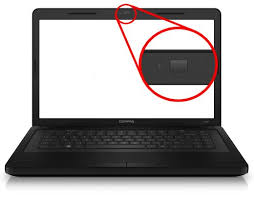
Why Is My HP Laptop Camera Not Working?
The camera on an HP laptop may stop working for many different reasons. Sometimes the issue is simple and can be fixed by adjusting system settings, while in other cases the problem may be related to drivers or hardware.
Many users notice that the camera either shows a black screen, displays an error message, or does not get detected by applications like Zoom, Microsoft Teams, or Skype. If basic troubleshooting does not fix the problem, consulting experts for hp laptop camera repair in patna can be a reliable solution.
Common Causes of HP Laptop Camera Problems
1. Disabled Camera in Privacy Settings
Windows has privacy settings that allow users to control which apps can access the camera. If the camera permission is turned off, applications will not be able to use the webcam.
2. Outdated or Corrupted Drivers
Drivers help the operating system communicate with hardware devices. If the webcam driver is outdated or corrupted, the camera may stop functioning.
3. Windows Update Issues
Sometimes after a Windows update, the webcam driver may become incompatible, causing the camera to stop working.
4. Application Conflicts
Certain applications may block access to the camera or create conflicts with other programs trying to use the webcam.
5. Hardware Damage
If the camera cable, module, or motherboard connection is damaged, the webcam will not function properly. In such situations, professional services like hp laptop camera repair in patna may be required to repair or replace the hardware.
How to Fix HP Laptop Camera Not Working
1. Restart Your Laptop
Restarting your laptop can sometimes resolve temporary glitches and restore normal functionality.
2. Check Camera Privacy Settings
Go to Settings → Privacy → Camera and make sure that camera access is enabled for your device and apps.
3. Update Camera Drivers
Open Device Manager, locate the camera device, and update the driver. You can also download the latest drivers from the official HP website.
4. Run Windows Troubleshooter
Windows includes built-in troubleshooting tools that can automatically detect and fix certain hardware issues.
5. Reinstall the Camera Driver
If updating the driver does not work, uninstall the camera driver from Device Manager and restart the laptop. Windows will reinstall the driver automatically.
If none of these solutions work, it may indicate a deeper hardware issue. In that case, professional technicians offering hp laptop camera repair in patna can inspect and repair the camera module.
When You Should Consider Professional Repair
Sometimes the camera problem is not related to software but to internal hardware components. If the webcam is physically damaged or the internal connection is loose, the camera will not work properly.
Signs that you may need professional repair include:
-
Camera not detected in Device Manager
-
Camera showing a permanent black screen
-
Webcam working intermittently
-
Camera stopped working after physical damage
In these situations, professional services like hp laptop camera repair in patna can help diagnose the problem accurately and provide a reliable repair solution.
Tips to Prevent Laptop Camera Issues
You can reduce the chances of camera problems by following some simple maintenance practices:
-
Keep your Windows operating system updated
-
Regularly update hardware drivers
-
Avoid installing unknown or unsafe software
-
Use reliable antivirus protection
-
Handle your laptop carefully to avoid physical damage
If the camera still stops working despite these precautions, you can contact experts who provide hp laptop camera repair in patna to ensure proper diagnosis and repair.
FAQ (Frequently Asked Questions)
1. Why is my HP laptop camera showing a black screen?
A black screen may appear due to disabled camera permissions, outdated drivers, or hardware issues.
2. How do I enable the camera on my HP laptop?
You can enable it by going to Windows Settings → Privacy → Camera and allowing apps to access the camera.
3. Can a virus cause the laptop camera to stop working?
Yes, malware or viruses can interfere with system files and prevent the camera from functioning properly.
4. How much does it cost to repair a laptop camera?
The cost depends on whether the issue is software-related or if the camera hardware needs replacement.
5. Where can I repair my HP laptop camera in Patna?
You can contact professional technicians or service providers offering hp laptop camera repair in patna for proper inspection and repair.