
HP laptop camera repair in patna
HP Laptop Camera Not Working: Causes, Fixes & When to Get It Repaired
In today’s digital world, a working laptop camera is essential for online meetings, video calls, classes, and content creation. So when your HP laptop camera suddenly stops working, it can quickly become a major inconvenience. The issue may seem serious, but in many cases, it can be resolved with simple troubleshooting steps.
In this detailed guide, we’ll explore why your HP laptop camera might not be working, how you can fix it, and when you should consider professional help like hp laptop camera repair in patna.
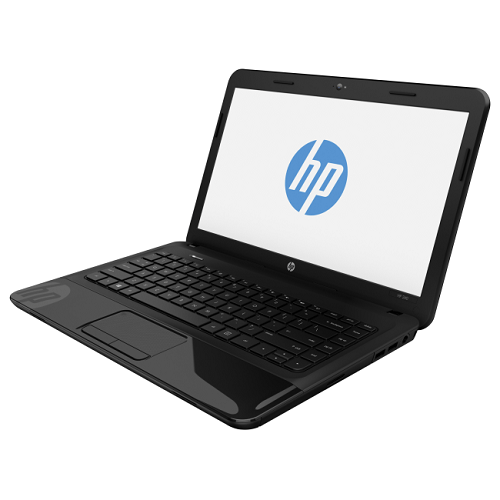
Common Reasons Why HP Laptop Camera Stops Working
Understanding the cause of the problem is the first step toward fixing it. Here are some of the most common reasons:
1. Outdated or Corrupted Drivers
Camera drivers allow your operating system to communicate with the hardware. If they are outdated or corrupted, your camera may stop functioning properly.
2. Privacy Settings Blocking Camera
Windows privacy settings sometimes restrict camera access for apps like Zoom, Teams, or Skype.
3. Disabled Camera in Device Manager
Your camera might be accidentally disabled, which prevents it from working.
4. Antivirus or Security Software
Some antivirus programs block camera access for security reasons.
5. Hardware Damage
If none of the software fixes work, the issue could be physical damage to the camera module or internal connection.
Easy Fixes You Can Try at Home
Before you look for repair services, try these quick solutions:
Restart Your Laptop
This might sound simple, but a restart can fix temporary glitches affecting your camera.
Check Camera Privacy Settings
- Go to Settings > Privacy > Camera
- Ensure camera access is enabled
- Allow apps to use your camera
Update Camera Drivers
- Open Device Manager
- Find Cameras or Imaging Devices
- Right-click and update the driver
Reinstall Camera Driver
If updating doesn’t help, uninstall the driver and restart your laptop to reinstall it automatically.
Check for Windows Updates
Sometimes, pending updates can cause compatibility issues.
When the Camera Still Doesn’t Work
If you’ve tried all the basic fixes and your camera is still not working, the issue may be hardware-related. This is where professional services like hp laptop camera repair in patna become important.
A technician can properly inspect whether the problem is with the camera module, internal wiring, or motherboard connection.
Signs You Need Camera Repair or Replacement
Here are some clear indicators that you should consider hp laptop camera repair in patna:
- Camera not detected at all
- Black screen even when camera is turned on
- Blurry or distorted video output
- Camera works intermittently
- Physical damage near the camera area
Ignoring these signs can lead to bigger issues, so it’s better to act early.
Why Choose Professional Repair Services?
Getting your laptop repaired by experts ensures that the issue is handled correctly and safely.
Benefits include:
- Accurate problem diagnosis
- Use of original or compatible parts
- Safe repair process
- Time-saving solutions
Choosing hp laptop camera repair in patna from a trusted service provider helps you avoid unnecessary risks and ensures long-term performance.
Repair Cost and Time
The cost of camera repair depends on:
- Your HP laptop model
- Whether repair or replacement is needed
- Severity of the issue
Most services are affordable and can be completed within the same day. Reliable centers offering hp laptop camera repair in patna provide quick turnaround times and transparent pricing.
Tips to Avoid Camera Issues in the Future
Once your camera is working again, follow these tips to prevent future problems:
- Keep your drivers updated
- Avoid installing untrusted software
- Use antivirus carefully without blocking essential apps
- Handle your laptop gently
- Keep your system clean and updated
These small habits can help you avoid recurring issues.
FAQs
1. Why is my HP laptop camera showing a black screen?
This could be due to driver issues, disabled settings, or hardware damage. Start with checking privacy settings and drivers.
2. How do I enable my HP laptop camera?
Go to Device Manager or privacy settings and ensure the camera is enabled and accessible to apps.
3. Can I fix my laptop camera myself?
Yes, if it’s a software issue. For hardware problems, professional repair is recommended.
4. How long does camera repair take?
Most repairs are completed within a few hours to a day.
5. Where can I get reliable camera repair services?
You can choose trusted technicians offering hp laptop camera repair in patna for safe and quick solutions.
Final Thoughts
A non-working camera can disrupt both personal and professional tasks, but the solution is often simpler than it seems. Start with basic troubleshooting, and if the issue persists, don’t hesitate to seek expert help.
Opting for hp laptop camera repair in patna ensures that your device is handled by professionals and restored to proper working condition without unnecessary delays.