
HP Care in Patna
How to Fix Laptop Auto Restart Issue in HP Laptops – Complete Guide
Laptop automatically restarting is one of the most frustrating issues HP users face. It can happen during work, gaming, video calls, or even while the laptop is idle.
The good news is that this problem can usually be solved at home with proper troubleshooting. In this guide, you’ll learn the main causes and step-by-step solutions that anyone can follow without technical knowledge.
If the issue continues even after trying all methods, you can always seek professional help from HP Care in Patna for deeper hardware diagnosis.
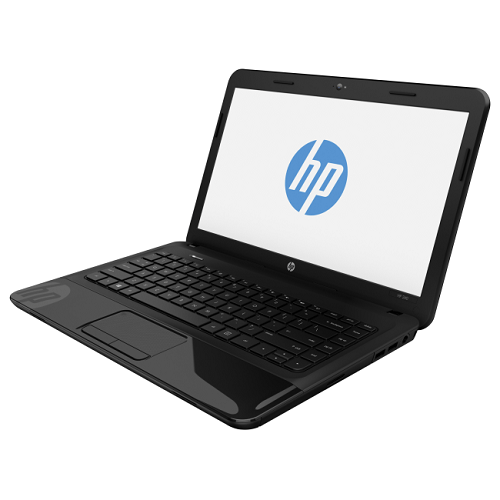
Why Does an HP Laptop Auto Restart?
There are several reasons why an HP laptop restarts on its own:
-
Overheating
-
Faulty drivers
-
Windows corruption
-
Power supply or battery issue
-
RAM or hardware fault
-
BIOS settings problem
-
Malware or virus infection
Identifying the cause makes it easier to solve the issue correctly.
Step-by-Step Solutions to Fix Auto Restart Issue
Below are practical solutions that users can try without damaging the system.
1. Check for Overheating
Overheating is one of the most common triggers for sudden restarts.
What to Do
-
Keep the laptop on a hard surface, not on a bed or pillow
-
Clean the air vents using a soft brush
-
Use a cooling pad
-
Close heavy apps like games, editing software, etc.
If overheating continues, a professional cleaning may be required. In such cases, visiting HP Care in Patna is a good option.
2. Disable Automatic Restart in Windows
Sometimes Windows automatically restarts whenever it detects an internal error.
Steps:
-
Right-click This PC → Properties
-
Click Advanced system settings
-
Under Startup and Recovery, click Settings
-
Uncheck Automatically Restart
This helps you identify the real error instead of sudden restarts.
3. Update Drivers (especially Graphics & Chipset)
Outdated or corrupted drivers can cause auto restarts.
Steps:
-
Open Device Manager
-
Update Display Adapter, Processor, System Devices
-
Restart the laptop
HP Support Assistant can also auto-update drivers.
4. Run SFC and DISM to Repair Windows
Corrupted system files often lead to automatic restart.
Use these commands (Run as Administrator):
After scanning, restart the laptop to check if the issue is fixed.
5. Check Power Settings
Incorrect power settings can cause random shutdowns.
Steps:
-
Go to Control Panel → Power Options
-
Select High Performance
-
Change plan settings → Set Never for sleep (temporarily for testing)
6. Scan for Malware
A virus can force the system to restart repeatedly.
Steps:
-
Open Windows Security
-
Go to Virus & Threat Protection
-
Run a Full Scan
If the scan detects threats, remove them and restart your laptop.
7. Test RAM and Hard Drive
Faulty RAM or a failing hard drive can trigger auto restarts.
Steps to Test RAM
-
Press Windows + R
-
Type:
-
Select Restart and check for problems
Steps to Test Hard Drive
-
Open Command Prompt (Admin) and type:
If RAM or HDD shows errors, replacement may be needed. For this, contacting HP Care in Patna is recommended.
8. Reset BIOS Settings
Sometimes incorrect BIOS settings cause instability.
Steps:
-
Restart laptop
-
Press F10 to enter BIOS
-
Select Restore Defaults
-
Save and exit
9. Perform a Clean Boot
A clean boot helps identify if a background service is causing issues.
Steps:
-
Press Windows + R
-
Type msconfig
-
Disable all startup programs
-
Restart laptop
If the problem stops, it means software conflict was the cause.
10. Factory Reset (Last Option)
If everything fails, resetting Windows usually solves the issue permanently.
Steps:
-
Go to Settings
-
Select Recovery
-
Click Reset this PC
-
Choose Keep My Files
If corruption is deep, a fresh OS installation may be needed.
In that case, visiting HP Care in Patna ensures the system is restored properly without data loss.
When Should You Visit HP Service?
If you notice these symptoms:
-
Laptop restarts even in BIOS
-
Burning smell or fan noise
-
System fails to boot
-
RAM or HDD errors
-
Restart happens every few minutes
Then it’s likely a hardware fault. At such times, professional inspection is necessary, and HP Care in Patna is the safest place to get certified repairs.
(Keyword Usage Count: 5)
FAQs – HP Laptop Auto Restart Issue
Q1. Why does my HP laptop restart again and again?
It may be due to overheating, driver issues, corrupted Windows, faulty power settings, or failing hardware parts.
Q2. Can this issue be fixed at home?
Yes, most software-related causes can be solved using the steps mentioned above.
Q3. Will disabling “Automatic Restart” fix the problem?
It won’t fix the root cause but will help you see the actual error message.
Q4. What if my laptop overheats even after cleaning vents?
The internal fan or thermal paste may need replacement.
Q5. When should I visit a service center?
If the laptop restarts even in safe mode or during BIOS, it’s likely a hardware fault and should be checked by professionals.
Final Words
Auto restart issues can be annoying, but with proper troubleshooting, most HP laptops can be fixed easily. Start with simple steps like checking overheating, updating drivers, and repairing Windows. If the problem continues, it’s best to consult experts at HP Care in Patna for reliable and safe repair.