
HP Authorised Service Center In Patna
How to Fix Windows Corruption Issue in an HP Laptop – Complete Troubleshooting Guide
Windows corruption is one of the most common problems HP laptop users face. It can appear in different forms—system crashing, slow performance, missing files, apps not opening, blue screen errors, or the laptop refusing to boot. The good news is that most Windows corruption issues can be fixed at home when you follow the right steps.
If you still face problems after trying everything, you can always contact your nearest HP Authorised Service Center In Patna for professional help.
But before that, let’s go through this complete guide and try all possible solutions.
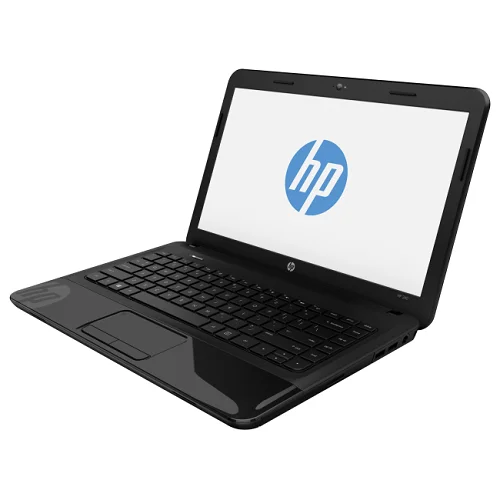
What Causes Windows Corruption in HP Laptops?
Windows corruption does not happen suddenly. There are a few common causes behind it:
-
Sudden shutdown or power failure
-
Faulty Windows update
-
Corrupted system files
-
Malware or virus infection
-
Bad sectors on hard drive
-
Incomplete software installation
-
Damaged system registry
Understanding the cause helps you pick the right solution. Below are step-by-step methods anyone can follow—even if you are not technical.
Step-by-Step Solutions to Fix Windows Corruption in HP Laptop
1. Run SFC Scan (System File Checker)
This is one of the primary tools used to repair corrupted Windows files.
How to Run SFC Scan
-
Press Windows Key + S
-
Type cmd
-
Right-click on Command Prompt → Run as Administrator
-
Type this command:
-
Press Enter
Windows will automatically find and repair corrupted files.
After completion, restart your laptop.
If the issue continues, move to the next step.
2. Use DISM Commands to Repair Windows Image
DISM is a powerful repair tool built into Windows.
Steps to Run DISM
-
Open Command Prompt (Admin)
-
Enter the following commands one by one:
These commands repair the Windows installation image and solve deeper corruption issues.
3. Run Windows Troubleshooter
Windows includes automated repair tools.
Steps:
-
Open Settings
-
Go to System → Troubleshoot → Other troubleshooters
-
Run troubleshooter for:
-
Windows Update
-
Keyboard
-
Internet
-
Hardware issues
-
These tools quickly fix common corruption-related errors.
4. Use HP Support Assistant (Built-in HP Tool)
HP laptops come with HP Support Assistant, which diagnoses system problems.
How to Use It
-
Search HP Support Assistant in Start Menu
-
Open it
-
Go to Troubleshooting & Fixes
-
Run all recommended scans and updates
If problems remain, consider contacting HP Authorised Service Center In Patna for expert-level diagnostics.
5. Perform “System Restore”
If your laptop was working fine earlier and suddenly started giving errors, System Restore can bring it back to its stable condition.
Steps:
-
Open Control Panel
-
Search Recovery
-
Click Open System Restore
-
Choose an earlier restore point
-
Restart the laptop
This method does NOT affect personal files—only system settings.
6. Scan for Malware or Viruses
Virus attacks are one of the major reasons for corrupted systems.
Steps:
-
Open Windows Security
-
Click Virus & Threat Protection
-
Select Full Scan
-
Allow it to complete
If malware is found, remove it and restart your laptop.
7. Fix Windows Boot via Startup Repair
If your HP laptop refuses to start or keeps showing errors, use Startup Repair.
Steps:
-
Restart laptop
-
Press F11 repeatedly (HP Recovery Mode)
-
Go to Troubleshoot → Advanced Options → Startup Repair
It automatically fixes corrupted boot files.
8. Check Hard Drive for Errors
A failing hard drive often causes Windows corruption.
Steps:
-
Open Command Prompt (Admin)
-
Type:
-
Press Enter
-
Restart laptop when asked
If too many bad sectors appear, your drive may need replacement—visit an HP Authorised Service Center In Patna for assistance.
9. Reset Windows Without Losing Data
If nothing works, resetting Windows is the best solution.
Steps:
-
Open Settings
-
Go to System → Recovery
-
Click Reset this PC
-
Choose:
-
Keep My Files (recommended), or
-
Remove Everything (fresh start)
-
A clean reset removes corrupted system files completely.
10. Reinstall Windows (Last Option)
If corruption is severe, reinstalling Windows is the ultimate fix.
You can:
-
Use a bootable pen drive
-
Use HP Recovery Manager
If you are not confident doing this yourself, take your laptop to the nearest HP Authorised Service Center In Patna for a safe OS installation.
When Should You Visit an HP Service Center?
Even after trying all methods, you may still face issues like:
-
Frequent blue screen errors
-
Laptop not booting
-
Windows crashing repeatedly
-
Hard disk making noise
-
System restoring automatically
These signs indicate hardware-level problems.
In such cases, the safest option is visiting a reliable HP Authorised Service Center In Patna to avoid further damage.
(Keyword usage count: 5)
FAQs – Fixing Windows Corruption in HP Laptop
Q1. What is the main reason for Windows corruption?
Corrupted system files, interrupted updates, faulty drivers, malware, or failing hard drives are common reasons.
Q2. Can I fix Windows corruption myself?
Yes, most issues can be solved using SFC, DISM, Startup Repair, or resetting Windows.
Q3. Will resetting Windows delete my files?
If you choose “Keep My Files”, your personal data stays safe. Only system settings and apps reset.
Q4. When should I go to an HP service center?
If your laptop repeatedly crashes, shows blue screen errors, or fails to boot even after troubleshooting.
Q5. Does Windows corruption mean my laptop hardware is damaged?
Not always. Many times it’s a software issue, but sometimes hard drive or RAM problems can cause corruption.
Final Thoughts
Windows corruption can feel frustrating, but with the right steps, most problems can be fixed without professional help. Start with SFC and DISM scans, try Startup Repair, and reset Windows if necessary.
If your laptop continues misbehaving, the best decision is to visit your nearest HP Authorised Service Center In Patna and get expert-level assistance.