
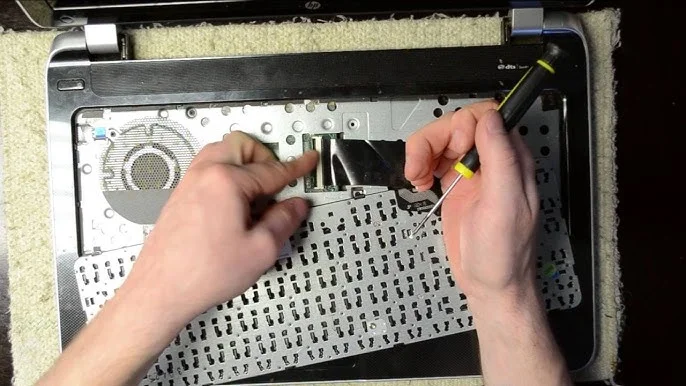
HP Care in Patna – Keyboard and touchpad issues on HP laptops can disrupt productivity, whether working, gaming, or browsing. Common symptoms include unresponsive keys, erratic touchpad behavior, or complete failure of either component. These issues may arise due to driver conflicts, software glitches, hardware malfunctions, or misconfigurations. This guide provides step-by-step solutions to resolve these problems, with options to seek professional help from HP care in Patna if needed.
Common Symptoms
-
Keyboard Issues: Keys not responding, sticky keys, random typing, or no input at all.
-
Touchpad Issues: Cursor jumping, unresponsiveness, erratic movement, or a disabled touchpad.
-
Combined Issues: Both keyboard and touchpad are failing simultaneously, often indicating a driver or hardware connection issue.
Step-by-Step Troubleshooting
1. Preliminary Checks
Before diving into complex solutions, perform these basic checks:
-
Restart the Laptop: A simple reboot can resolve temporary glitches. Shut down your laptop, wait for 30 seconds, and restart.
-
Check for Physical Damage: Inspect the keyboard and touchpad for debris, liquid damage, or loose connections. Clean the keyboard gently with compressed air or a soft brush.
-
External Devices: Disconnect any external USB or Bluetooth mice/keyboards, as they may disable the internal touchpad or keyboard.
-
Function Key Check: Many HP laptops have a function key (e.g., F6, F7, or F9) to enable/disable the touchpad. Press the Fn key along with the appropriate function key (check for a touchpad icon). A glowing orange light on the touchpad’s top-left corner indicates it’s disabled—double-tap to re-enable.
2. Software and Driver Solutions
Most keyboard and touchpad issues are software-related, often caused by outdated or corrupted drivers, especially after Windows updates.
Update Drivers
-
Access Device Manager:
-
Press Windows + R, type devmgmt.msc, and hit Enter.
-
Expand Keyboards and Mice, and other pointing devices.
-
Right-click the keyboard (e.g., “Standard PS/2 Keyboard”) and touchpad (e.g., “Synaptics Pointing Device” or “ELAN Touchpad”) entries, then select Update driver.
-
Choose Search automatically for drivers. If no updates are found, visit the HP support website (support.hp.com) and download the latest drivers for your laptop model.
-
-
Roll Back Drivers: If the issue started after a driver update, roll back to the previous version:
-
In Device Manager, right-click the keyboard or touchpad entry, select Properties, go to the Driver tab, and click Roll Back Driver (if available).
-
-
Reinstall Drivers:
-
In Device Manager, right-click the device and select Uninstall device.
-
Restart your laptop; Windows will attempt to reinstall the default drivers. If this doesn’t work, manually download drivers from the HP support website.
-

Check Touchpad Settings
-
Navigate to Settings > Devices > Touchpad in Windows.
-
Ensure the touchpad is toggled on. Adjust sensitivity settings if the cursor jumps erratically.
-
Disable Palm Check or adjust its sensitivity to prevent the touchpad from locking during typing, especially for gaming laptops.
-
If the touchpad still doesn’t work, check for a Synaptics or ELAN control panel in the Control Panel > Mouse settings to enable or reconfigure the touchpad.
Windows Updates
-
Go to Settings > Update & Security > Windows Update and click Check for updates. Install any pending updates, as they may include fixes for hardware compatibility issues.
-
If the issue began after a Windows update (e.g., Windows 11), consider reverting to a previous version or performing a system restore to a point before the issue occurred.
3. Hardware Diagnostics
If software fixes don’t resolve the issue, it’s time to check for hardware problems.
-
Run HP PC Hardware Diagnostics:
-
Restart your laptop and press F2 repeatedly to enter the HP PC Hardware Diagnostics UEFI.
-
Run tests for the keyboard and touchpad. If tests fail, it indicates a hardware issue, and you may need to contact HP care in Patna for repair or replacement.
-
-
Check Connections:
-
If you’re comfortable opening your laptop, ensure the keyboard and touchpad ribbon cables are securely connected to the motherboard. This is common after battery or screen replacements.
-
Warning: Opening your laptop may void the warranty. If under warranty, contact HP care in Patna for professional assistance.
-
-
Test in BIOS/UEFI:
-
Restart and press F10 to enter BIOS. If the keyboard and touchpad work in BIOS but not in Windows, the issue is likely software-related (e.g., driver conflicts). If they don’t work in BIOS, it’s a hardware issue.
-
4. Advanced Software Fixes
-
Safe Mode Testing:
-
Boot into Safe Mode (press F8 or use Settings > System > Recovery > Advanced startup).
-
Test the keyboard and touchpad. If they work, a third-party software or driver conflict is likely. Uninstall recent software or updates.
-
-
System Restore:
-
Go to Control Panel > Recovery > Open System Restore and select a restore point before the issue started.
-
-
Reinstall Windows:
-
As a last resort, perform a full Windows reinstall using the HP Cloud Recovery Tool (available at support.hp.com). Back up your data first, as this will erase your files.
-
Note: Some users reported that reinstalling Windows fixed the issue temporarily, but it reoccurred after Windows updates. Manually install specific drivers from the HP website, such as the Intel Management Engine Interface (MEI) Driver, to avoid conflicts.
-
5. Hardware Replacement
If diagnostics indicate a hardware failure or if the above steps fail:
-
Keyboard Replacement: Symptoms like sticky or unresponsive keys may require cleaning or replacement. HP care in Patna can clean or replace the keyboard with a compatible model.
-
Touchpad Replacement: If the touchpad is physically damaged or fails diagnostics, it may need replacement. Contact HP care in Patna for warranty-covered repairs or professional service.