
Authorised HP Service Center in Patna
Encountering storage drive problems on your HP laptop can be disruptive and stressful. Whether it’s a traditional Hard Disk Drive (HDD) or a modern Solid State Drive (SSD), failures manifest in various ways. As an HP engineer, I see these issues daily. This guide will help you understand common problems, perform basic diagnostics, and crucially, know when to seek professional help from an Authorised HP Laptop Service Center in Patna.

Common Symptoms of Hard Drive (HDD) or SSD Failure:
-
Boot Failures: Laptop gets stuck on the HP logo, displays “Boot Device Not Found,” “Invalid System Disk,” or “No Bootable Device.”
-
Extreme Slowness: System becomes sluggish, programs take forever to load, file transfers crawl, constant freezing or hanging.
-
Frequent Crashes & Blue Screens: Unexpected system crashes, Blue Screens of Death (BSOD) often with errors mentioning disk, file system (NTFS), or driver issues.
-
Strange Noises (HDD Specific): Clicking, grinding, scraping, or loud whirring sounds – STOP USING THE LAPTOP IMMEDIATELY IF THIS HAPPENS. This indicates severe physical damage.
-
Disappearing Files/Folders: Files or entire folders vanish, or you get “File/Directory is Corrupted” errors.
-
Corrupted Data: Files won’t open, show gibberish, or applications fail due to corrupted data.
-
S.M.A.R.T. Errors: The system BIOS or HP diagnostics warn of an “Imminent Hard Drive Failure” or S.M.A.R.T. status failure.
-
Drive Not Detected: The BIOS/UEFI setup or Windows Disk Management doesn’t list the drive at all.
Authorised HP Service Center in Patna
Essential Initial Troubleshooting Steps:
-
Backup Immediately (If Possible): If the system boots at all, back up your critical data NOW to an external drive or cloud storage. Drive failure can worsen suddenly.
-
Restart the Laptop: Sometimes, a simple reboot clears temporary glitches.
-
Check Connections (For Serviceable Models):
-
Important Note: Most modern HP laptops have non-user-serviceable drives. Do NOT attempt this unless your specific model has an easily accessible drive bay. Opening the chassis incorrectly can void your warranty.
-
If accessible, power down completely, remove the battery (if removable), and disconnect the AC adapter. Carefully open the compartment and ensure the drive’s SATA/m.2 connector is firmly seated.
-
-
Run HP Built-in Diagnostics:
-
Power off the laptop.
-
Power on and immediately press the Esc key repeatedly.
-
At the Startup Menu, press F2 for “System Diagnostics”.
-
Choose “Component Tests” > “Hard Drive” (or “Storage”).
-
Run the Quick Test first. If it passes, run the Extensive Test. Note any error codes (e.g.,
HDD-XXX,SSD-XXX).
-
-
Run Windows Check Disk (CHKDSK) – Use with Caution:
-
Only attempt if the drive is accessible but behaving erratically.
-
Open Command Prompt as Administrator (Search
cmd, right-click > Run as administrator). -
Type
chkdsk C: /f /r(replaceC:with your OS drive letter if different) and press Enter. -
It will ask to schedule on next reboot. Type
Yand restart. -
Warning: CHKDSK can sometimes push a failing drive over the edge. Have backups! If the drive is making noises, DO NOT RUN CHKDSK.
-
-
Check Disk Health with CrystalDiskInfo: Download and run the free tool CrystalDiskInfo. It reads the drive’s S.M.A.R.T. data and displays its health status clearly (Good, Caution, Bad).
Authorised HP Service Center in Patna
When DIY Isn’t Enough: Critical Signs You Need Professional Help
-
Any Physical Noise (Clicking/grinding) from an HDD: This is a hardware emergency. Power down immediately.
-
Drive Not Detected in BIOS/UEFI or HP Diagnostics: Indicates potential controller, connection, or catastrophic drive failure.
-
S.M.A.R.T. Errors or HP Diagnostic Failures: Especially codes indicating hardware faults.
-
Repeated Boot Failures or BSODs: After basic troubleshooting.
-
Failed CHKDSK or Severe Corruption: Inability to repair the file system.
-
Need Data Recovery from a Failed Drive: Requires specialized tools and a cleanroom environment for physical issues.
-
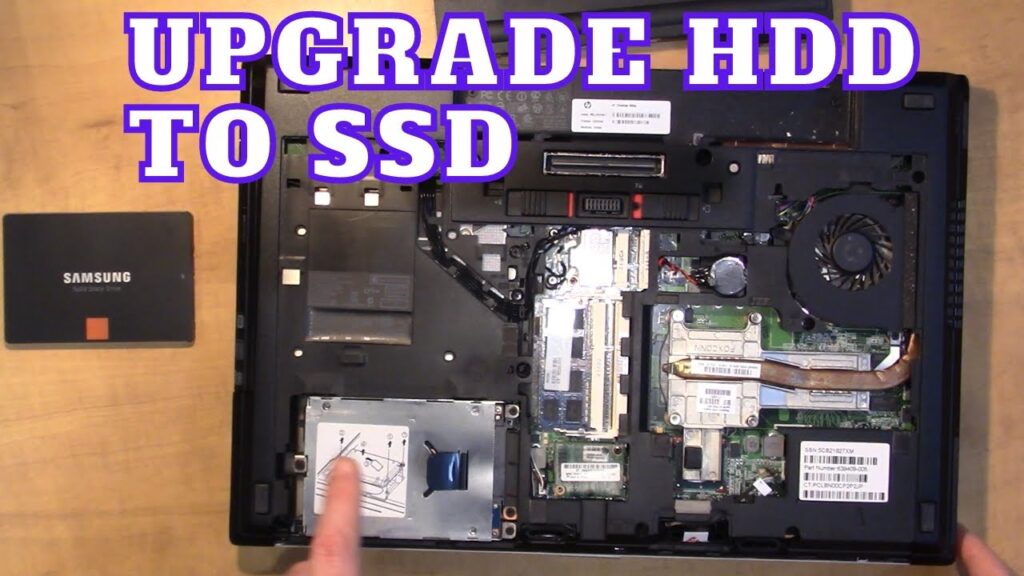
Drive Replacement Needed: Requires a correct HP-compatible part and often firmware/settings configuration.
Why Choosing an Authorised HP Service Center is Non-Negotiable:
-
Genuine HP Parts: They use only original HP drives and components, ensuring compatibility, performance, and longevity. Counterfeit or incompatible drives cause instability and damage.
-
HP-Trained & Certified Technicians: Engineers receive specific training on HP laptop architectures, diagnostics, and repair procedures. They know the intricacies of your model.
-
Advanced Diagnostics: Access to proprietary HP tools and deeper diagnostic suites beyond consumer software.
-
Preserve Your Warranty: Repairs performed by authorized centers maintain your existing HP warranty. Unauthorized repairs often void it.
-
Quality Workmanship: Repairs adhere to strict HP standards for quality and safety.
-
Specialized Data Recovery Options: While not guaranteed, authorized centers have better resources and partnerships for attempting data recovery from damaged drives than typical shops. Crucially, contact the Authorised HP Laptop Service Center in Patna immediately for the best chance of recovery if data is critical.
-
Firmware & Configuration Expertise: Ensuring the new drive has the correct firmware and is configured optimally for your HP system.
The Vital Role of the Authorised HP Laptop Service Center in Patna
For Patna residents facing stubborn HP laptop drive issues, the local Authorised HP Laptop Service Center in Patna is your definitive solution. They possess the expertise, tools, and genuine parts necessary to accurately diagnose whether it’s a failing HDD/SSD, a motherboard controller issue, or a software corruption problem. Attempting complex drive repairs or replacements without proper training and parts risks permanent data loss and further hardware damage. Trusting the Authorised HP Laptop Service Center in Patna guarantees your laptop is handled correctly, preserving its integrity and your valuable data whenever possible.