
HP Care in Patna
HP laptops are known for performance and reliability, but sometimes users face issues like the HP laptop not starting or getting stuck at startup. This problem can happen due to software glitches, corrupted system files, hardware issues, or even power-related faults. In this article, we will explain the causes of HP laptop startup problems and provide easy solutions to fix them.

HP Care in Patna
Common Reasons for HP Laptop Startup Problems
-
Battery or Power Supply Issue – Faulty charger or dead battery.
-
Corrupted Windows Files –A damaged operating system prevents normal boot.
-
Hardware Problems – RAM, hard drive, or motherboard malfunction.
-
Overheating – Excess heat can stop the laptop from starting.
-
External Devices – USB drives or accessories sometimes cause startup errors.
Solutions to Fix HP Laptop Startup Problems
1. Check Power Supply and Battery
-
Ensure the charger is connected properly.
-
Remove the battery (if removable), press and hold the power button for 15 seconds, then reconnect and try starting.
-
Try another HP-compatible charger if available.
2. Remove External Devices
-
Disconnect USB drives, printers, and external hard disks.
-
Restart the laptop – sometimes external devices interrupt the boot sequence.
3. Perform a Hard Reset
-
Turn off the laptop.
-
Disconnect the charger and battery.
-
Hold the power button for 20 seconds to discharge residual electricity.
-
Reconnect the battery and charger, then press the power button.
4. Boot into Safe Mode
-
Press F11 repeatedly while starting the laptop.
-
Choose Advanced Startup Options → Troubleshoot → Advanced Options → Startup Settings → Restart.
-
Select Safe Mode and check for driver or software conflicts.
5. Use HP Hardware Diagnostics
-
Press Esc + F2 during startup.
-
Run hardware tests (RAM, hard drive).
-
If an error appears, the part may need repair or replacement.
6. Repair Windows System Files
-
Insert a Windows installation USB/DVD.
-
Boot from it and choose Repair your Computer → Troubleshoot → Startup Repair.
-
This will fix corrupted boot files.
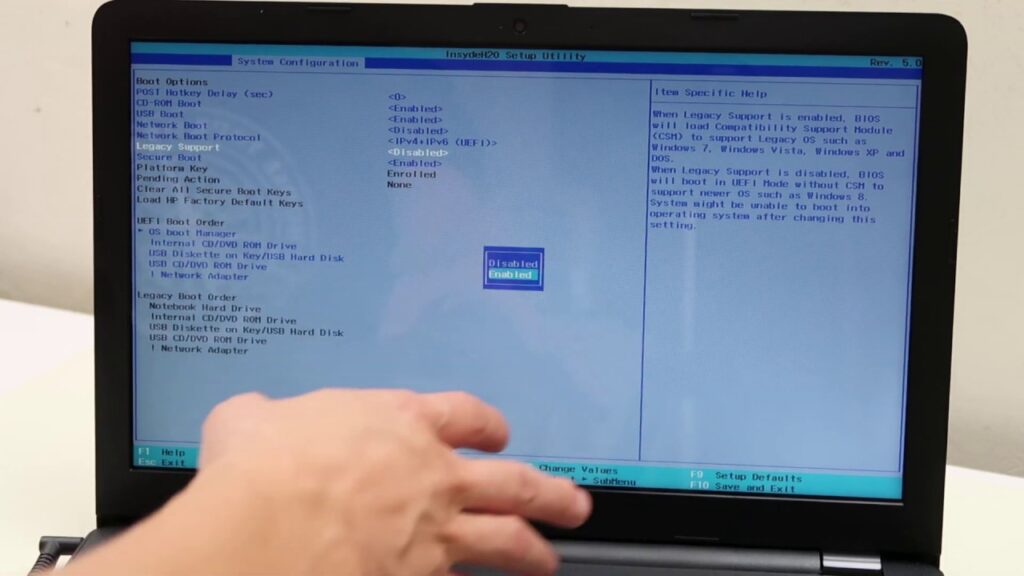
7. Update BIOS
-
Sometimes an outdated BIOS causes boot issues.
-
Visit the HP official website, download the latest BIOS for your laptop model, and update.
8. Seek Professional Help
If none of the above solutions work, the issue may be hardware-related (motherboard, RAM, or hard disk). In that case, visiting an authorized HP service center is the best option.
HP Care in Patna
Preventive Tips
-
Always shut down your laptop properly.
-
Keep your laptop dust-free and cool.
-
Update Windows and drivers regularly.
-
Avoid using non-HP chargers or faulty batteries.
Conclusion
HP laptop startup problems can be frustrating, but in most cases, you can fix them by checking the power, performing a hard reset, running diagnostics, or repairing Windows. If the issue continues, it may be a hardware fault that requires expert repair.
FAQs on HP Laptop Startup Problem
Q1. Why is my HP laptop not turning on at all?
Ans: This usually happens due to battery failure, faulty charger, or power supply issues. Try a hard reset and check with another HP-compatible charger.
Q2. My HP laptop turns on but is stuck on the HP logo, what should I do?
Ans: If your laptop is stuck at the HP logo, try entering Safe Mode by pressing F11 at startup. You can also perform a Startup Repair from Windows recovery.
Q3. Can a corrupted Windows update cause startup problems in HP laptops?
Ans: Yes, a failed or corrupted Windows update can stop your HP laptop from booting properly. In such cases, use System Restore or Startup Repair.
Q4. How do I run diagnostics on my HP laptop if it won’t start?
Ans: Press Esc + F2 during startup to open the HP PC Hardware Diagnostics Tool. Run memory and hard drive tests to identify hardware issues.
Q5. Will resetting my HP laptop fix startup problems?
Ans: Yes, if the issue is due to software or corrupted system files, performing a factory reset or Windows reset may solve the problem. Backup data first if possible.
Q6. My HP laptop beeps but doesn’t start. What does it mean?
Ans: Beeping sounds usually indicate hardware issues like RAM or motherboard failure. Each beep code has a meaning, and you may need professional repair.
Q7. When should I visit an HP Service Center for a startup issue?
Ans: If basic fixes like hard reset, safe mode, or startup repair don’t work, and you suspect a hardware issue (RAM, hard drive, or motherboard), it’s best to visit an authorized HP Service Center.