
HP Laptop Service Center In Patna
HP Laptop Brightness Control Not Working? Here’s the Complete Fix Guide
When the brightness slider stops working on an HP laptop, it becomes difficult to use the screen comfortably—especially in low light or outdoor conditions. Many users face this issue after a Windows update, driver problem, or incorrect settings. The good news is that you can usually fix it at home without any technical background. And if the problem continues, visiting a trusted HP Laptop Service Center In Patna is always the safest option.
Below is a simple, step-by-step guide that helps you restore brightness controls on your HP laptop.
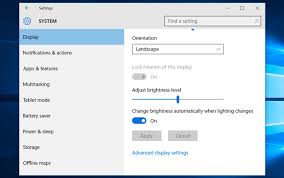
✔ 1. Check Basic Brightness Shortcuts
Sometimes the issue is not technical — the shortcut keys might be disabled.
Try using:
-
Fn + F2 → For decreasing brightness
-
Fn + F3 → For increasing brightness
If nothing changes, move to the next step.
✔ 2. Update Display Drivers
Faulty or outdated display drivers stop brightness controls from working.
Follow these steps:
-
Right-click Start Menu
-
Click Device Manager
-
Expand Display Adapters
-
Right-click your graphic driver (Intel/AMD/NVIDIA)
-
Select Update Driver → Search automatically
After updating, restart your laptop. If the brightness slider appears again, your issue is solved. Otherwise, continue.
✔ 3. Roll Back Display Driver
Sometimes updates cause the brightness to stop working.
Steps:
-
Open Device Manager
-
Right-click the display driver
-
Click Properties
-
Go to Driver tab
-
Select Roll Back Driver
This restores the previous version of your driver, which often fixes the brightness issue. If still not fixed, the experts at an HP Laptop Service Center In Patna can check driver compatibility for you.
✔ 4. Enable Generic Microsoft Display Driver
This is one of the most effective solutions.
-
Open Device Manager
-
Right-click your graphic driver
-
Choose Update Driver
-
Select Browse my computer for drivers
-
Select Let me pick from a list
-
Choose Microsoft Basic Display Adapter
Restart your laptop and test the brightness keys.
✔ 5. Fix It Through Power Options
Sometimes brightness settings are limited under your power plan.
Steps:
-
Open Control Panel
-
Click Power Options
-
Select Change plan settings
-
Click Change advanced power settings
-
Expand Display
-
Check Enable adaptive brightness
-
Turn it Off
Now check the brightness slider.
✔ 6. Run Windows Display Troubleshooter
Windows has a built-in tool for fixing brightness-related issues.
Go to:
Settings → System → Troubleshoot → Other troubleshooters → Display
Run the tool and let it detect problems.
If still unresolved, you can take help from a trusted HP Laptop Service Center In Patna, especially if the issue is related to hardware or backlight failure.
✔ 7. Check for Windows Update
Sometimes a missing update causes brightness problems.
Go to:
Settings → Windows Update → Check for updates
Install all updates and restart.
✔ 8. Hardware-Related Issues
If none of the above fixes work, the issue may be:
-
Backlight failure
-
Screen panel damage
-
Loose display connector
-
Faulty graphic chipset
In such cases, proper hardware inspection is required. Visiting an experienced HP Laptop Service Center In Patna ensures accurate diagnosis and repair.
FAQ (Frequently Asked Questions)
Q1. Why is my HP laptop brightness slider not working?
Mostly due to display driver issues, incorrect settings, or Windows update errors. Using the steps above usually restores function.
Q2. Can this issue be fixed without visiting a technician?
Yes, most brightness issues can be fixed through driver updates and settings adjustments.
Q3. Is it a hardware problem?
If brightness keys and slider do not respond at all, the backlight or display cable may be faulty.
Q4. When should I visit an HP Laptop Service Center In Patna?
If you have tried all software fixes and the brightness still doesn’t change, it is best to visit a professional technician. A reliable HP Laptop Service Center In Patna can check hardware issues quickly.
Q5. Does replacing the screen fix brightness issues?
Only if the backlight is damaged. A technician at an HP Laptop Service Center In Patna can confirm this.