
HP Authorised Service Center In Patna
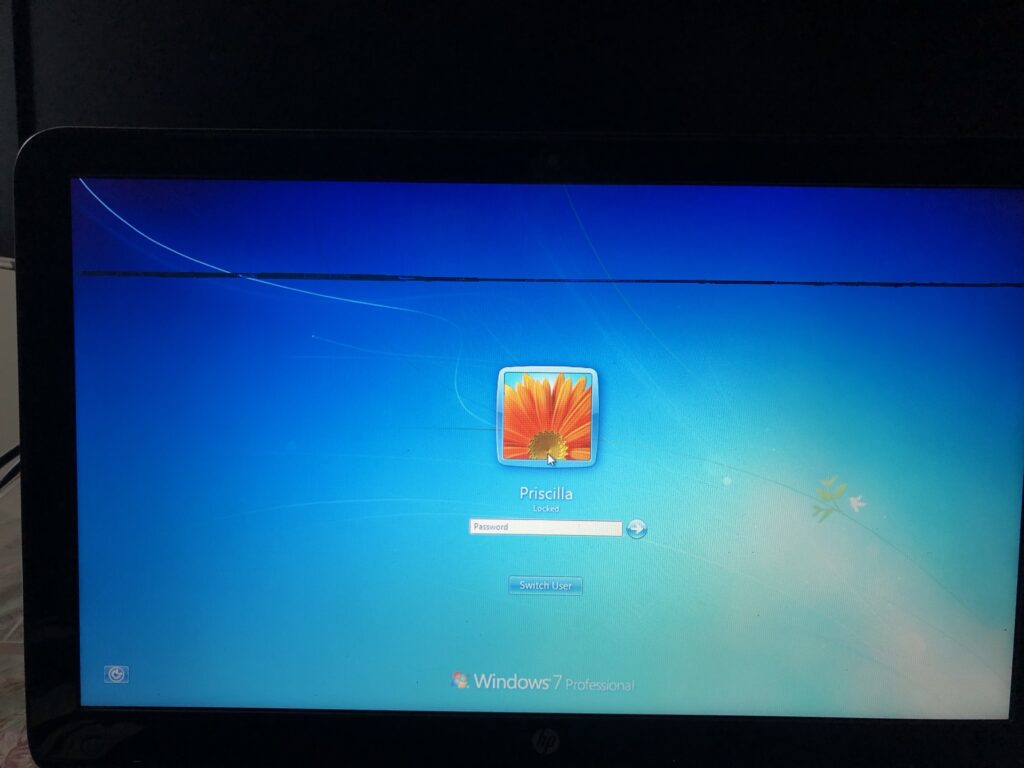
HP Laptop Display Showing Lines or Black Screen — Complete Fixing Guide
A laptop display suddenly showing horizontal or vertical lines, flickering, or going completely black can feel frustrating—especially when you need your device the most. HP laptops are known for durability, but like any electronic device, display issues can occur due to software faults, loose connections, graphics driver problems, or even hardware damage.
This guide will help you understand the root cause of the problem and walk you through solutions that actually work. These troubleshooting steps are simple, practical, and safe for anyone to follow.
If at any step you feel the issue is beyond repair, you can always get help from an HP Authorised Service Center In Patna to avoid further damage.
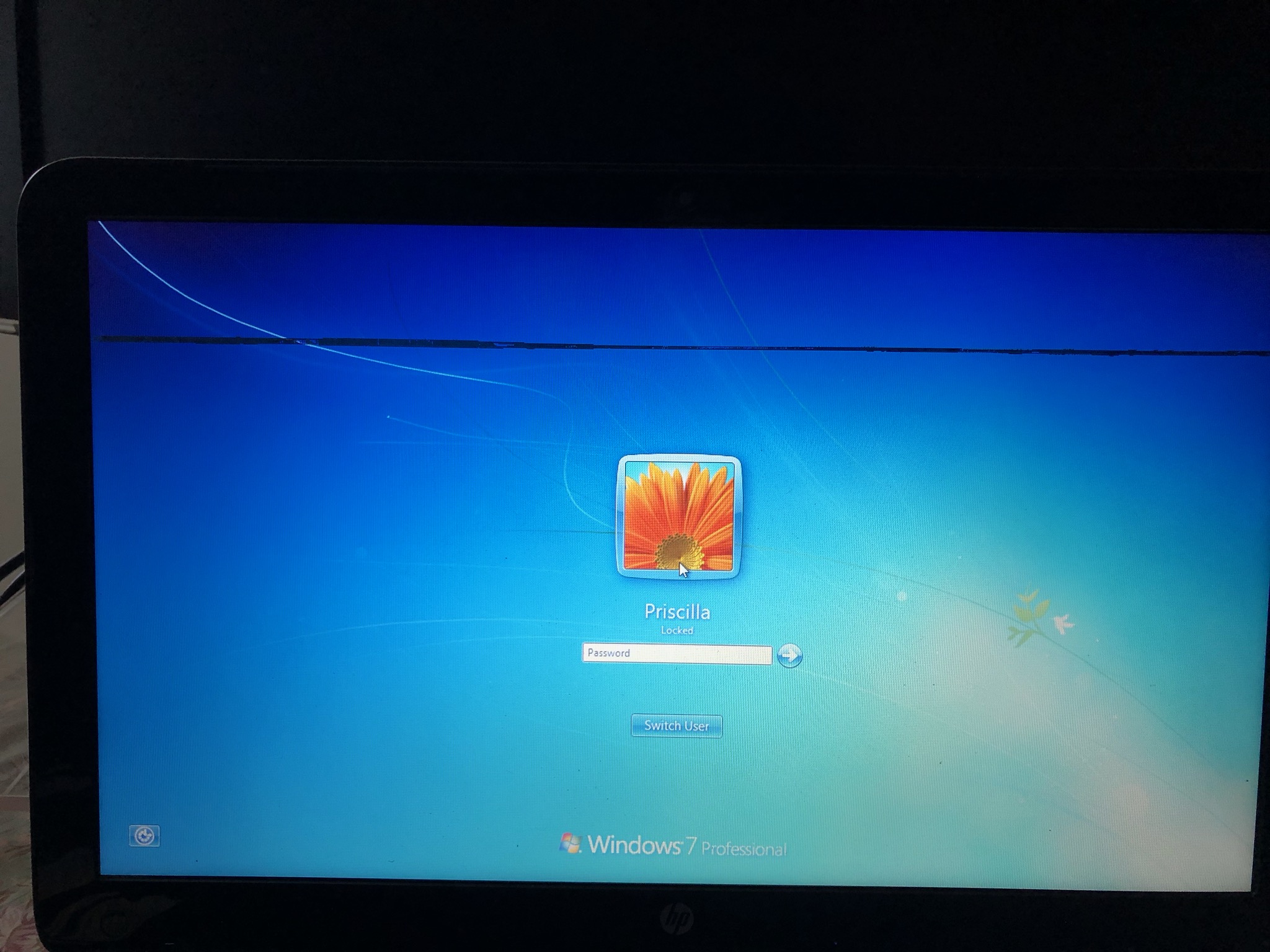
Why Do Display Lines or Black Screen Issues Occur?
Before jumping into solutions, it helps to know the common reasons:
-
Loose or damaged display cable
-
Faulty or outdated graphics drivers
-
Software or Windows update issues
-
Overheating affecting GPU performance
-
Damaged display panel
-
Motherboard or GPU failure
-
Physical damage due to pressure or shock
If the problem comes and goes when you move the screen, that often means the display cable is loose. If the screen stays completely black, it may be a hardware or motherboard-related issue. If lines appear randomly, it could be a simple driver problem or a faulty panel.
In any of these cases, if you feel unsure, an HP Authorised Service Center In Patna can diagnose the fault professionally.
Step-by-Step Solutions to Fix Display Lines & Black Screen Problem
1. Restart the Laptop with a Hard Reset
Sometimes, temporary static power can cause display issues.
Steps:
-
Turn off the laptop.
-
Disconnect charger and remove the battery (if removable).
-
Press and hold the power button for 20 seconds.
-
Reconnect the charger and turn it on.
This resets the hardware and often fixes black screen issues.
2. Check the Display Brightness & External Display
If your HP laptop screen turns black, it might be the brightness set too low or a graphics switch issue.
Try this:
-
Connect your laptop to an external monitor or TV using HDMI.
-
If the external display works fine, your laptop screen may be faulty.
At this stage, you can get confirmation from an HP Authorised Service Center In Patna if the internal display needs replacement.
3. Update or Reinstall Graphic Drivers
Corrupt drivers can cause lines or flickering.
Steps:
-
Right-click Start → Device Manager
-
Expand Display Adapters
-
Right-click your graphics driver
-
Choose Update or Uninstall and restart
Windows will install a fresh driver automatically.
4. Boot into Safe Mode
Safe Mode loads minimal drivers.
If the display lines disappear in Safe Mode, the issue is driver-related.
Steps:
-
Press Shift → Restart
-
Choose Troubleshoot → Advanced Options → Startup Settings
-
Press F4 for Safe Mode
If the display works fine here, update all drivers.
5. Check the Screen Flex Cable (Common Cause)
The flex cable connects the motherboard to the display.
If it’s loose or damaged, you will see:
-
Flickering
-
Colored vertical/horizontal lines
-
Screen only working when the lid is positioned in certain angles
You should NOT attempt opening the laptop unless you have experience.
A trained technician at an HP Authorised Service Center In Patna can fix this in minutes.
6. Replace the Display Panel
If the screen is physically damaged or the LCD/LED panel has failed, the only solution is replacement.
Symptoms of a dead panel:
-
Permanent lines or patches
-
Screen bleeding
-
Complete black display but laptop running
Always choose a genuine display panel.
You can get original parts at an HP Authorised Service Center In Patna to avoid cheap duplicates.
7. Check for Motherboard or GPU Failure
If none of the above solutions work, the issue may be deeper:
-
Faulty GPU
-
Motherboard IC issues
-
Burnt components
-
Overheating damage
These repairs require advanced tools and should not be done at home.
Professional help from an HP Authorised Service Center In Patna is the safest way to fix these problems.
Final Thoughts
Display issues in HP laptops can range from simple software glitches to serious hardware faults. Start with the basic solutions mentioned above, and if the problem persists, it’s best to get the laptop checked by experts. Troubleshooting at home helps only when the issue is minor.
For reliable and safe repair, prefer visiting an HP Authorised Service Center In Patna, where trained technicians use genuine HP components.
FAQs
1. Why do lines appear on my HP laptop screen?
Lines appear due to loose cables, faulty display panels, outdated drivers, or GPU issues.
2. Can I fix the black screen issue myself?
Yes, basic steps like hard reset, external display check, and driver updates may help.
3. When should I visit a service center?
If the screen has physical damage, lines don’t go away, or the display stays black permanently.
4. Do display issues always mean hardware damage?
Not always. Many times, it’s just a driver or cable issue that can be fixed quickly.
5. Where should I go for genuine HP parts and repair?
For original parts and expert repair, visit an HP Authorised Service Center In Patna.