
HP Laptop Camera Not Working: Causes, Fixes & Repair Guide
The built-in camera on an HP laptop is an essential feature, especially for video calls, online classes, and meetings. But it can be frustrating when the camera suddenly stops working or shows a black screen. This issue is quite common and can happen due to both software and hardware problems.
In this guide, we’ll walk you through the main reasons behind the issue, how you can fix it, and when it’s time to consider hp laptop camera repair in patna.
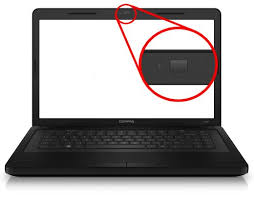
Common Reasons Why HP Laptop Camera Stops Working
Understanding the cause is the first step toward solving the problem.
1. Camera Disabled in Settings
Sometimes the camera is turned off in system settings or privacy controls.
2. Driver Issues
Outdated or corrupted camera drivers can prevent the webcam from functioning properly.
3. App Permissions
If apps don’t have permission to access the camera, it won’t work in Zoom, Teams, or browser.
4. Antivirus or Security Blocks
Some security software blocks camera access to protect privacy.
5. Hardware Damage
If your laptop has suffered physical damage, the camera module might stop working, requiring hp laptop camera repair in patna.
Easy Fixes You Can Try at Home
Before going for repair, try these simple troubleshooting steps:
1. Restart Your Laptop
A basic restart can fix temporary glitches affecting the camera.
2. Check Camera Privacy Settings
- Go to Settings
- Click Privacy & Security
- Enable Camera Access
3. Update Camera Drivers
- Open Device Manager
- Find “Cameras”
- Update the driver
4. Reinstall Camera Driver
Uninstall the camera driver and restart your laptop to reinstall it automatically.
5. Check for Windows Updates
Sometimes updates fix compatibility issues related to the webcam.
6. Try a Different App
Check if the camera works in another app to identify if the issue is app-specific.
When You Need Professional Camera Repair
If your camera still doesn’t work after trying all the fixes, it could be a hardware problem. Look for these signs:
- Camera not detected at all
- Black screen even after driver update
- Physical damage near webcam area
- Frequent camera disconnection
In such cases, going for hp laptop camera repair in patna is the best option to restore proper functionality.
Benefits of Professional Repair Services
Choosing expert repair services ensures:
- Proper diagnosis of the issue
- Use of genuine replacement parts
- Long-lasting performance
- Safe and reliable repair process
Many users prefer searching for hp laptop camera repair in patna to find trusted technicians who can fix the issue quickly.
Tips to Avoid Camera Problems in Future
- Keep your system and drivers updated
- Avoid installing unknown software
- Handle your laptop carefully
- Don’t block or damage the camera area
- Use antivirus to prevent malware issues
Following these steps can reduce the chances of needing hp laptop camera repair in patna again.
FAQ Section
Q1. Why is my HP laptop camera showing a black screen?
This usually happens due to driver issues, disabled settings, or hardware faults.
Q2. How can I enable my HP laptop camera?
Go to privacy settings and turn on camera access for your device and apps.
Q3. Can I fix camera problems without repair?
Yes, many issues can be fixed by updating drivers or changing settings.
Q4. How do I know if my camera is physically damaged?
If it is not detected in Device Manager or shows no response, it may be damaged.
Q5. Where can I get my HP laptop camera fixed?
You can search for reliable services offering hp laptop camera repair in patna for quick and effective solutions.
Conclusion
Camera issues in HP laptops can be caused by minor software glitches or serious hardware problems. While basic troubleshooting can solve many issues, persistent problems often require expert attention. Choosing hp laptop camera repair in patna ensures your laptop camera is restored properly without hassle.
Taking care of your device and keeping it updated can help you avoid such issues and enjoy smooth performance in the long run.