
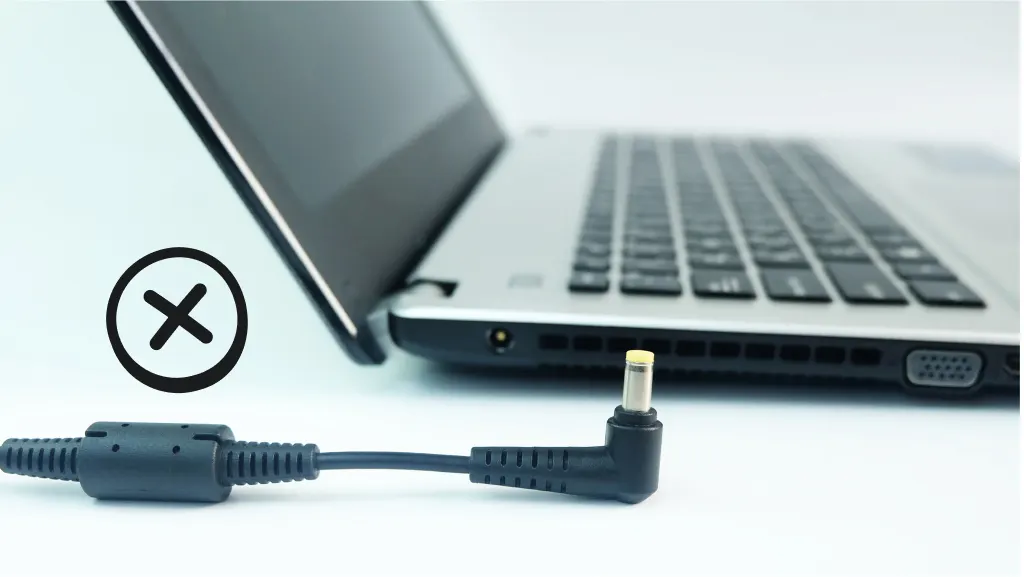
HP Laptop Service Center In Patna
HP Laptop Plugged in, Not Charging – Complete Guide to Fix the Issue
One of the most common problems HP users face is the “Plugged in, Not Charging” error. The laptop shows that it’s connected to the charger, but the battery percentage doesn’t increase. This can happen suddenly, even if the charger and battery were working fine before.
The good news is that this issue can usually be fixed at home with simple steps—no technical background needed. And if nothing works, you can always visit a trusted HP Laptop Service Center In Patna for professional help.
This article explains all the possible reasons and complete solutions, so you can fix the problem and avoid it in the future.

Why Does “Plugged in, Not Charging” Happen?
Several things can cause this error:
-
Loose or damaged charging cable
-
Faulty charger
-
Battery health issues
-
Outdated or corrupt battery drivers
-
Overheating
-
Wrong power settings
-
Faulty charging port
-
BIOS or system glitches
Before heading to an HP Laptop Service Center In Patna, try the solutions below. Most users fix the issue themselves.
Step-by-Step Solutions to Fix the Issue
1. Check Your Charger and Cable
The first thing you should do is inspect the charger.
What to check:
-
Is the adapter cable cut or loose?
-
Is the charging pin bent?
-
Is the power socket working?
Tip: Try plugging the charger into a different wall socket.
Sometimes the problem is not the laptop but the power source.
If the charger is damaged, replace it. A faulty charger can harm the battery over time. If you’re unsure, visit an HP Laptop Service Center In Patna to get it tested.
2. Remove the Battery and Reinsert It (If Removable)
If your HP laptop has a removable battery:
-
Shut down the laptop
-
Remove the battery
-
Hold the power button for 15 seconds
-
Reinsert the battery
-
Connect the charger
-
Turn the laptop on
This resets the battery and fixes temporary glitches.
3. Perform a “Hard Reset” (For Non-Removable Batteries)
-
Turn off the laptop
-
Hold the power button for 30 seconds
-
Plug in the charger
-
Turn your laptop on
This clears static power buildup that may interfere with charging.
4. Check the Charging Port
Dust or loose connection can prevent proper charging.
-
Blow gently into the charging port
-
Make sure the pin fits tightly
-
Check for movement or looseness
If the charging port feels loose, it may need repair. You can visit an HP Laptop Service Center In Patna for a quick fix.
5. Update or Reinstall Battery Drivers
Many users fix the issue by resetting battery drivers.
Steps:
-
Press Windows + X
-
Choose Device Manager
-
Expand Batteries
-
Right-click Microsoft AC Adapter → Uninstall
-
Right-click Microsoft ACPI-Compliant Control Method Battery → Uninstall
-
Restart your laptop
Your laptop will automatically reinstall fresh drivers.
6. Update the BIOS
HP laptops sometimes require BIOS updates for battery-related problems.
How to update:
-
Open HP Support Assistant
-
Check for BIOS updates
-
Download & install
Do not turn off your laptop during a BIOS update.
7. Check HP Battery Health
HP has built-in diagnostics:
-
Restart your laptop
-
Press Esc repeatedly
-
Choose F2 – System Diagnostics
-
Run the Battery Test
If the test shows battery failure, replacement is required. You can get a genuine battery from an HP Laptop Service Center In Patna.
8. Reduce Overheating
Overheating can stop the battery from charging.
-
Keep the laptop on a hard surface
-
Clean the air vents
-
Avoid using the laptop while charging
-
Use a cooling pad
If the laptop overheats frequently, service is needed.
9. Try a Different Charger
If possible, borrow a charger from someone with the same HP model.
If the laptop charges normally, your charger is faulty.
10. Reset Power Settings
-
Go to Control Panel
-
Open Power Options
-
Click Restore default settings
Sometimes custom power plans cause charging issues.
When Should You Visit a Service Center?
If none of the above solutions work, the problem could be:
-
Faulty motherboard charging IC
-
Damaged charging port
-
Dead battery
-
Internal circuit problem
In such cases, it’s best to visit a certified HP Laptop Service Center In Patna to avoid further damage.
Frequently Asked Questions (FAQ)
1. Why does my HP laptop say “Plugged in, Not Charging”?
It happens due to battery issues, charger faults, driver glitches, overheating, or port problems.
2. Can I fix this problem at home?
Yes! Most solutions like driver reset, hard reset, and charger check can be done at home.
3. Does this error mean my battery is dead?
Not always. A battery test through HP Diagnostics will confirm it.
4. How long do HP laptop batteries last?
Generally 2–4 years depending on usage.
5. Is it safe to use third-party chargers?
No. Always use an original HP charger to avoid damage.
6. What if nothing works?
Then you should get the laptop checked at an HP Laptop Service Center In Patna.
Final Thoughts
“Plugged in, Not Charging” is a very common HP laptop issue, but in most cases, it can be fixed easily with the steps mentioned above. Whether it’s a driver glitch, a loose connection, or overheating, knowing how to troubleshoot saves both time and money.
And if the problem continues, a trusted HP Laptop Service Center In Patna can diagnose it professionally and provide a long-term solution.